


Find answers to common questions about SGUDA smart locks, installation, the SGUDA App, and product support.
Find installation requirements and guidance for your SGUDA smart lock.
Learn about lock features, settings, and the SGUDA App.
Find warranty information and product support.
Learn more about SGUDA, our products, and technology.
SGUDA smart locks are compatible with most standard door types, including wooden doors, steel doors, and stainless steel doors.
Installation requirements may vary depending on the product model. Before purchasing, please confirm your door thickness, lock case dimensions, and existing borehole layout.
If you’re unsure whether your door is compatible, simply send us photos of the front, back, side of the door, and the door frame. Our SGUDA team will be happy to help you verify compatibility.
Some SGUDA smart lock models are designed for DIY installation. Before you begin, please refer to our Installation Guide for detailed instructions.
Depending on your door type and existing lock, additional drilling or modifications may be required. If you are unsure about the installation process, we recommend seeking assistance from a professional installer.
In most cases, yes. However, compatibility depends on factors such as the existing boreholes, door thickness, and lock case dimensions.
To ensure compatibility, please send us photos of your current lock and door, and our team will help evaluate your installation requirements.
Depending on the model, SGUDA smart locks may support Fingerprint, Passcode, RFID Card, SGUDA App, Bluetooth, and Mechanical Key.
Please refer to the specifications on each product page for the available unlocking methods.
Yes. SGUDA smart locks are powered by batteries, so a power outage will not affect normal unlocking functions.
However, features that require an internet connection, such as remote access, may be unavailable if your home network equipment loses power.
Yes. When the battery level becomes low, you will receive a notification through the SGUDA App (Wi-Fi connection required), or the lock will sound a low-battery warning after unlocking.
Once the warning appears, the lock can typically operate for another 5–7 days. We recommend replacing the batteries as soon as possible using alkaline batteries only.
If the batteries become completely depleted before replacement, you can still unlock the door using the Mechanical Key.
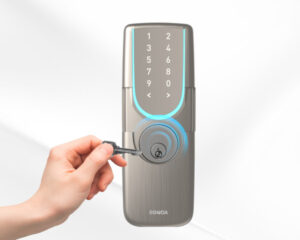
Depending on the model, you can unlock the door using the Mechanical Key or temporarily power the lock through the USB Type-C emergency power port.
Please refer to your product’s user manual for detailed instructions.
We recommend using alkaline batteries from the same brand, such as Panasonic or Energizer.
Do not mix different battery brands or old and new batteries.
Please note: Battery leakage is not covered under the product warranty.
If you notice unusually high battery consumption, please check your Wi-Fi signal strength. Poor Wi-Fi connectivity may cause the lock to repeatedly reconnect, increasing battery usage. We recommend turning off Wi-Fi until the signal has been improved.
No. Simply sign in to the SGUDA App using your existing account on your new device.
Your lock information and account settings will remain unchanged, although Bluetooth pairing or certain security verifications may need to be completed again.
Depending on the model, the following features require Wi-Fi or internet access:
Basic unlocking methods such as Fingerprint, Passcode, RFID Card, and Mechanical Key work without an internet connection.
The SGUDA App is available on both the Apple App Store and Google Play.
After downloading the SGUDA App, you can quickly sign up using your Google, Facebook, or Apple account, or register with your email address.
Please complete the following steps while standing near the smart lock.
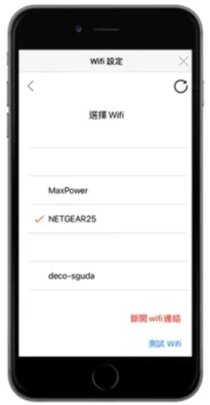
Open Lock Settings → Lock Wi-Fi → Disconnect Wi-Fi.
After disconnecting, select your new Wi-Fi network from the same screen and enter the password.
Wait 5–10 seconds after connecting.
Go to Lock Settings → Test Wi-Fi to confirm the connection.
Please refer to your SGUDA User Manual and follow the instructions for Unlink U-Lock and Reset U-Lock.
No. Simply log in to the SGUDA App using your existing account on your new phone.
Your lock settings, users, and permissions will remain unchanged.
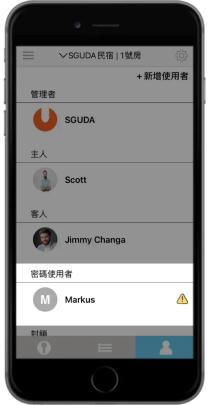
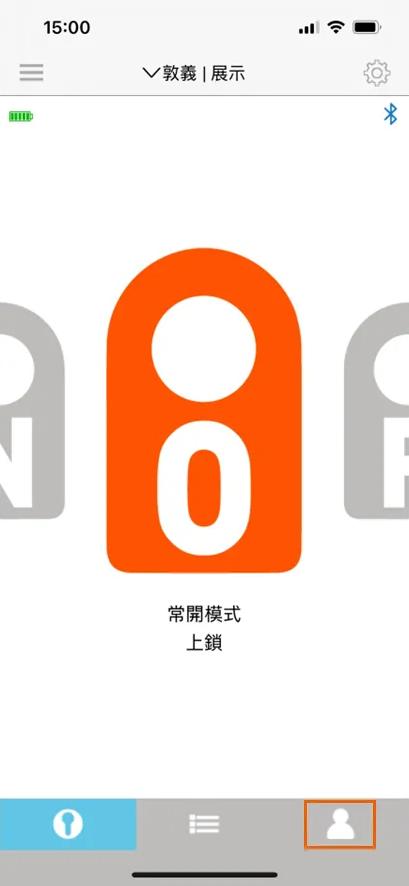
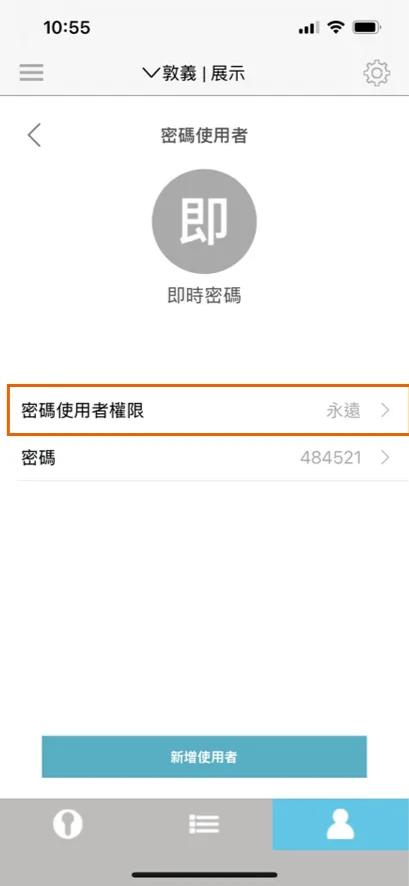
1. Open the SGUDA App and tap User Access.
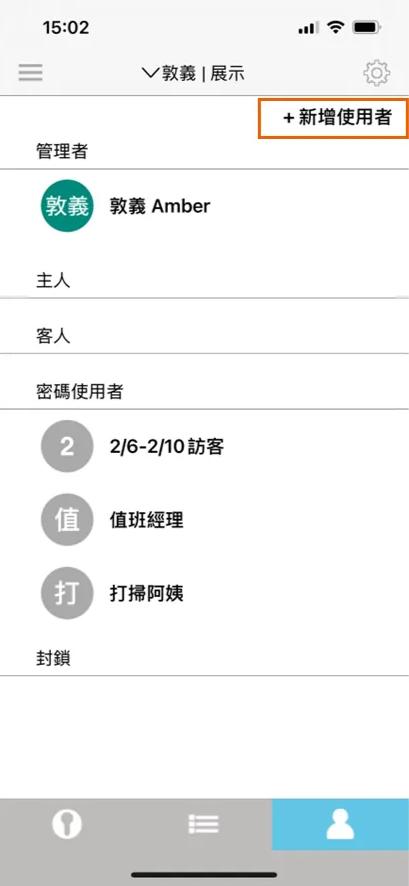
2. Select + Add User.
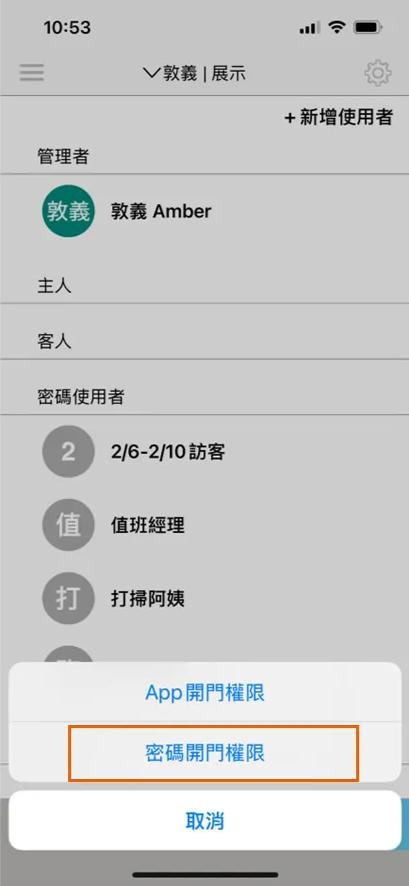
3. Choose Passcode Only.
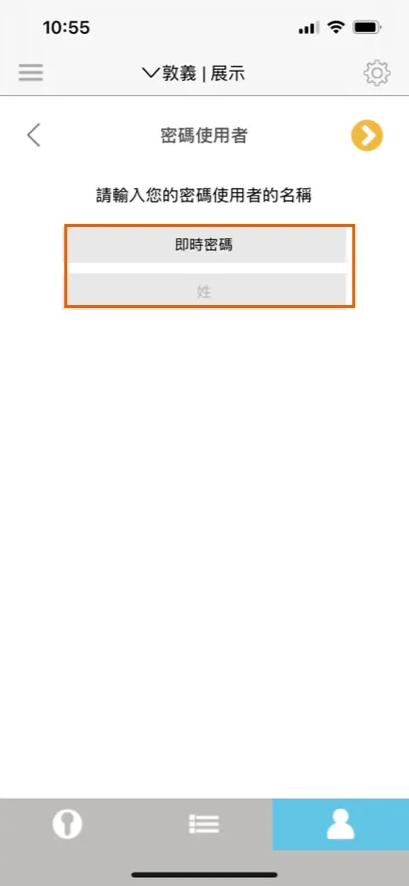
4. Enter the required user information.
5. Select Passcode Access.
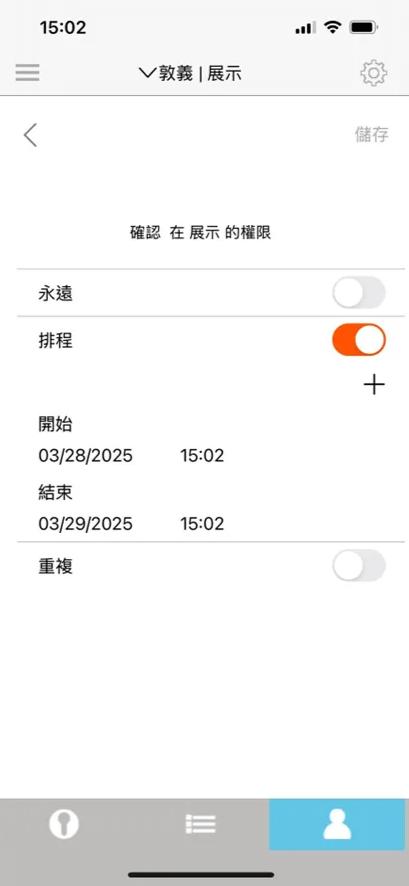
6. Choose Schedule.
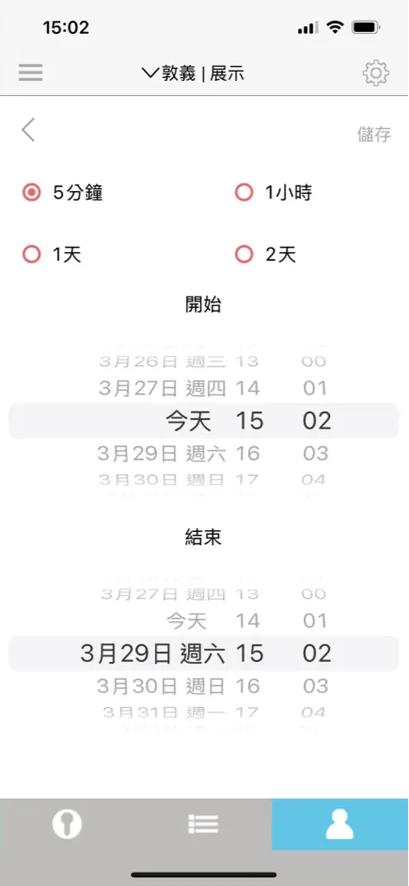
7. Set the access period.
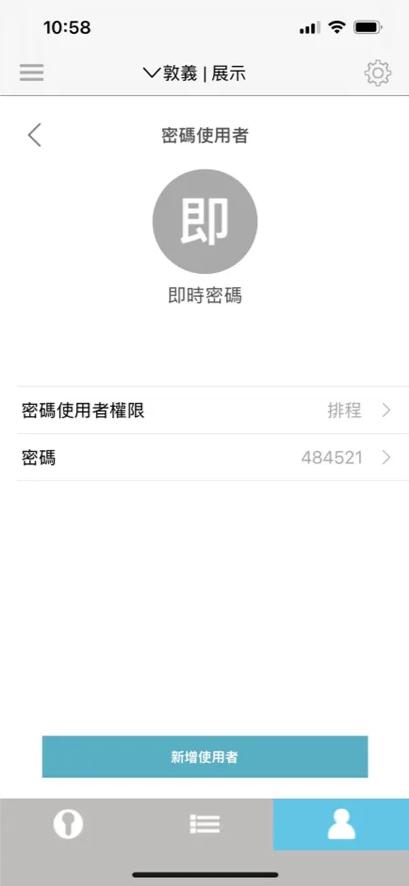
8. Save the passcode and share it with your guest.
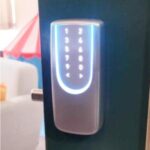
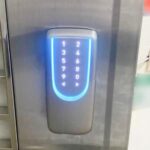
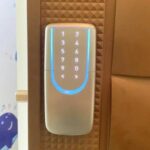
Yes. SGUDA smart locks feature a resistive LED touchscreen keypad designed to help protect against high-voltage electric shock attacks.
The following features require an active Wi-Fi connection:
Your phone must be connected to the lock via Bluetooth.
The following settings require a Bluetooth connection:
Yes. SGUDA products are covered by a limited warranty.
The warranty period, coverage, and applicable terms may vary depending on the product and your place of purchase. Please refer to the warranty policy provided with your product for complete details.
You can contact us through the contact information available on the SGUDA website or our official LINE account.
To help us resolve your issue more quickly, please prepare the following information:
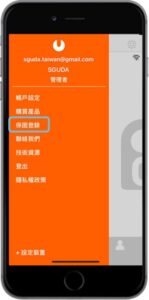
1. Open the SGUDA App. Tap the Menu in the upper-left corner.
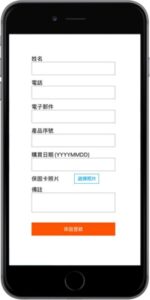
2. Select Warranty Registration.
3. Send us a screenshot showing the complete registration information.
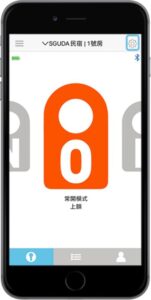
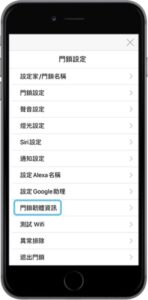
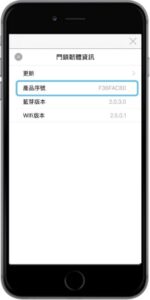
1. Open the SGUDA App.Tap Settings.
2. Select Device Information.
3. Send us a screenshot of the firmware information.
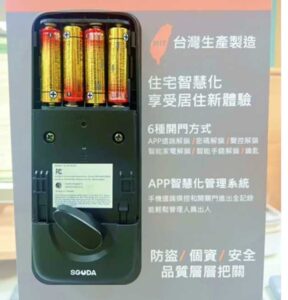
Please remove the battery cover and send us a clear photo of the inside of the lock. This helps our support team identify the product and diagnose the issue more efficiently.
No. Damage caused by battery leakage, improper battery use, or batteries that do not meet the recommended specifications is not covered under the product warranty.
To ensure optimal performance, always use the recommended alkaline batteries specified in the product manual.
Yes. SGUDA is a Taiwan smart lock brand.
With more than 50 years of lock manufacturing experience, SGUDA integrates product development, engineering, manufacturing, and quality management to deliver reliable and innovative smart lock solutions.
Yes. SGUDA smart locks combine mechanical engineering, electronic control systems, and smart connectivity to provide secure and reliable access.
Each product undergoes rigorous testing and quality control. Security features, certifications, and specifications may vary by model. Please refer to the individual product page for detailed information.
If your question isn’t covered in this FAQ, please contact the SGUDA Support Team through our official LINE account or the Contact Us page.
We’ll be happy to assist you with product selection, installation, troubleshooting, or any other questions.

Manage your cookie preferences below:
Essential cookies enable basic functions and are necessary for the proper function of the website.
These cookies are needed for adding comments on this website.
Google Tag Manager simplifies the management of marketing tags on your website without code changes.
Statistics cookies collect information anonymously. This information helps us understand how visitors use our website.
Google Analytics is a powerful tool that tracks and analyzes website traffic for informed marketing decisions.
Service URL: policies.google.com (opens in a new window)
Marketing cookies are used to follow visitors to websites. The intention is to show ads that are relevant and engaging to the individual user.
Google Ads is an online advertising platform that enables businesses to create targeted ads displayed on Google search results and partner sites.
Service URL: policies.google.com (opens in a new window)