Are smart lock passcodes worth it? Whether you’re welcoming visitors, scheduling cleaning services, or managing Airbnb guests, sharing the same door code isn’t always the best option.
With features like one-time passcodes, temporary access codes, and scheduled access, modern smart locks make it easier to manage who can enter your property and when, without constantly changing passwords or handing over physical keys.
In this guide, we’ll explore 4 practical uses for smart lock passcodes, explain the different access modes, and share tips for managing user permissions securely.
What Types of Smart Lock Passcodes Access Are Available?
In addition to standard passcodes, many smart locks offer different access modes based on each user’s needs.
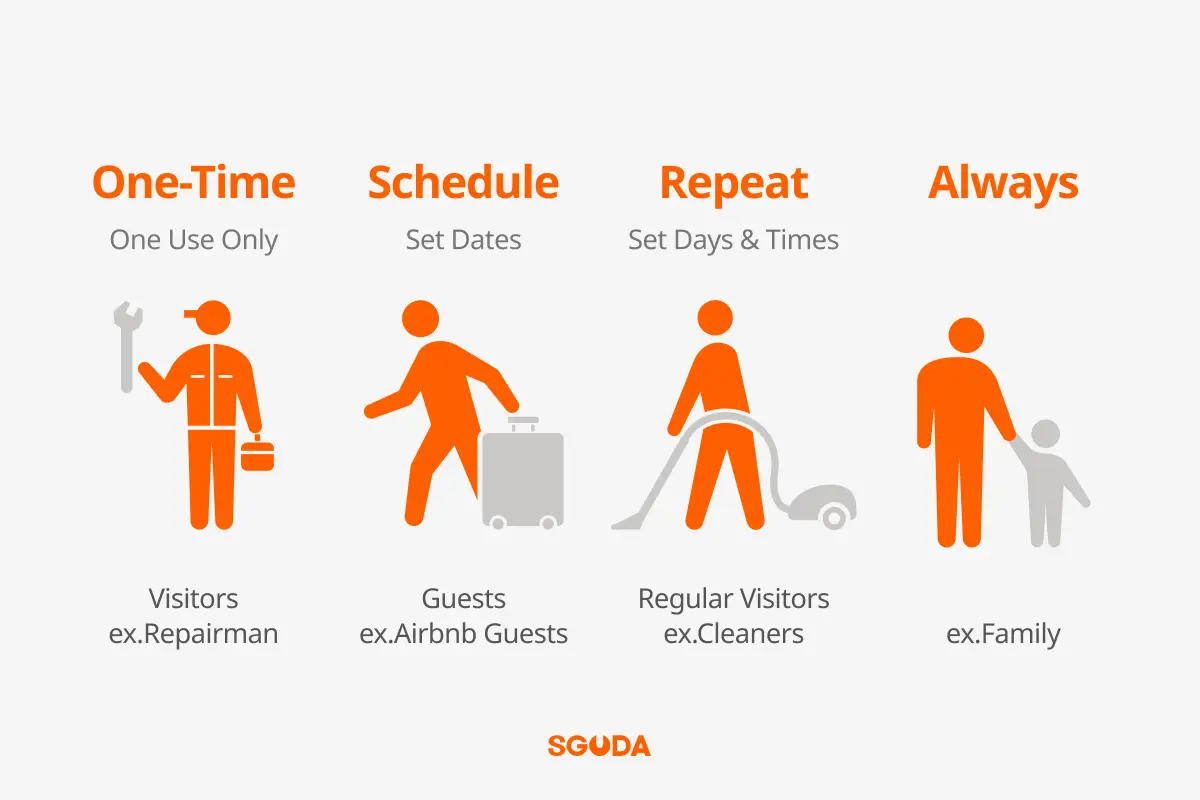
One-Time Passcode: For Temporary Visitors
A one-time passcode typically allows a single entry and expires after use.
For example, you can provide a temporary code to a maintenance worker or a friend who needs to enter your home without sharing your regular passcode.
However, some smart locks offer single-use codes, while others provide codes that remain valid for a short period. Always check your device’s specifications.
Schedule: For Short-Term Guests
Schedule access allows you to set specific start and end dates and times.
For example, if an Airbnb guest checks in on Friday at 3:00 PM and checks out on Sunday at 12:00 PM, you can schedule their access for that period.
Once the scheduled period ends, the passcode will no longer grant access.
This reduces the need for in-person key handovers and manual passcode changes between guests.
Repeat: For Regular Visitors
Repeat access is designed for people who visit on a recurring schedule, such as cleaning staff, caregivers, or part-time employees.
For example, you can allow access every Tuesday and Friday from 2:00 PM to 5:00 PM.
The passcode works during the scheduled hours without providing unrestricted access.
Always: For Family Members
Always access is suitable for family members and long-term residents who need regular entry.
Instead of sharing one passcode, you can assign individual codes to different users if your smart lock supports multiple user accounts.
This makes it easier to manage or remove someone’s access without affecting other users.
| Access Type | Best For | Key Feature |
|---|---|---|
| One-Time Passcode | Temporary visitors, maintenance workers | Expires after one use |
| Schedule | Airbnb guests, short-term tenants | Valid during a specified period |
| Repeat | Cleaning staff, regular visitors | Access during recurring time slots |
| Always | Family members, long-term residents | Continuous access until revoked |
How to Set Smart Lock Access for Different Users
Assigning the right access permissions helps you manage your property without repeatedly changing passcodes.
For Families: Create Individual Passcodes
Family members don’t need to share the same passcode.
By assigning individual codes, you can update or remove one person’s access without affecting everyone else.
Some smart locks also provide an Activity Log through their app, allowing authorized users to review lock and unlock activities.
For Visitors and Cleaning Staff: Set Access Schedules
For friends staying a few days, Schedule access allows you to specify when their passcode becomes valid and when it expires.
For cleaning staff visiting regularly, Repeat access lets you assign recurring weekly time slots.
This reduces the need to distribute physical keys or provide permanent access to temporary visitors.
For Airbnb Hosts and Rental Properties: Manage Guest Access
Using the same passcode for every guest can create security concerns.
Instead, assign a separate passcode to each booking and use Schedule access to match the check-in and check-out times.
For properties equipped with smart locks that support remote user management, hosts can update access permissions without visiting the property.
Smart Lock Passcode Management: 4 Security Tips
- Avoid sharing passcodes : Assign individual passcodes whenever possible. This makes it easier to change or revoke access without affecting other users.
- Remove unused access permissions : When guests check out, employees leave, or service arrangements end, verify that their access has expired or been removed.
- Separate administrator and guest permissions : Not everyone who can unlock the door needs permission to manage users or change lock settings.
Keep administrative functions restricted to authorized users. - Check Wi-Fi requirements for remote management : Remote passcode management requires a compatible smart lock and an active connection.
If Wi-Fi becomes unavailable, passcodes already stored locally on supported SGUDA locks can still be used. However, remote management functions may be temporarily unavailable.
Manage User Access with SGUDA Smart Locks
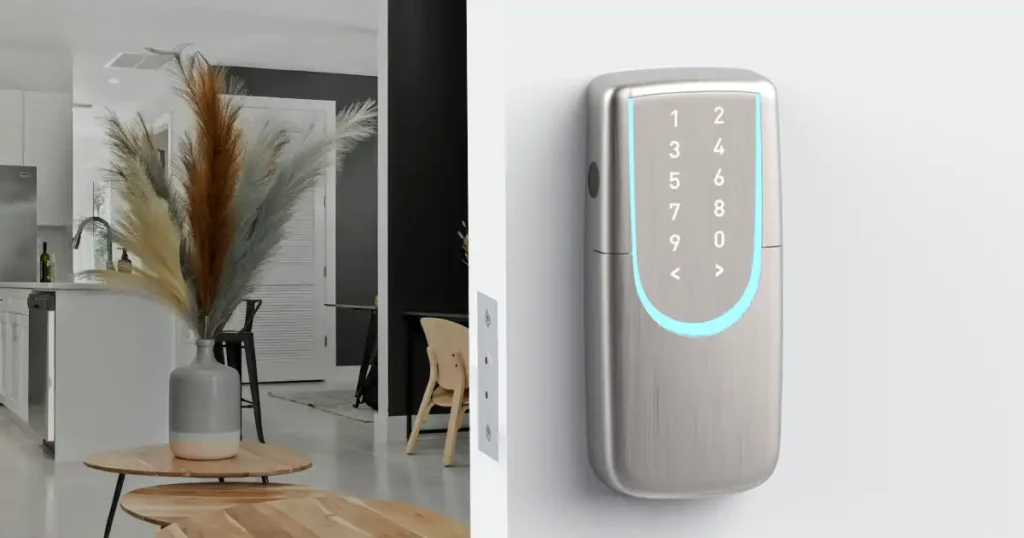
SGUDA smart locks offer app-based User Access management, allowing you to assign permissions based on different users and situations.
For example, the SGUDA SU-W6 Smart Lock supports three access modes:
- Always: Grants ongoing access for family members and long-term residents.
- Schedule: Sets start and end dates and times for guests or temporary users.
- Repeat: Allows access during recurring weekly time slots for cleaners and other regular visitors.
Through the SGUDA App, authorized users can manage access permissions and remove users when necessary.
The SU-W6 also features built-in Wi-Fi, supporting remote passcode management without an additional Wi-Fi hub when connected to the network.
Whether you’re managing a household, Airbnb property, or rental accommodation, flexible access settings can help reduce physical key handovers and simplify day-to-day management.
Explore the SGUDA SU-W6 Smart Lock Explore the SGUDA SU-FP6 Smart Lock
FAQ
Q1.Can I create multiple passcodes for one smart lock?
Yes. Many smart locks allow you to create individual passcodes for different users.
Q2.What’s the difference between a one-time passcode and Schedule access?
A one-time passcode typically expires after a single successful use.
Schedule access remains valid during a specified date and time range, allowing multiple entries within that period.
The available options depend on the smart lock model.
Q3. Will my passcode still work without Wi-Fi?
Yes, if the passcode is already stored locally on a compatible smart lock.
However, remote user management and real-time notifications may be unavailable until the network connection is restored.
Q4. Can I manage smart lock passcodes remotely?
Yes, with a compatible Wi-Fi-enabled smart lock.
The SGUDA SU-W6 supports remote passcode management through the SGUDA App when the lock is connected to Wi-Fi.
Q5. Do I need to factory reset my smart lock after a guest checks out?
No. If your smart lock supports individual User Access management, you can remove the guest’s permissions or let their scheduled access expire without resetting the entire lock.