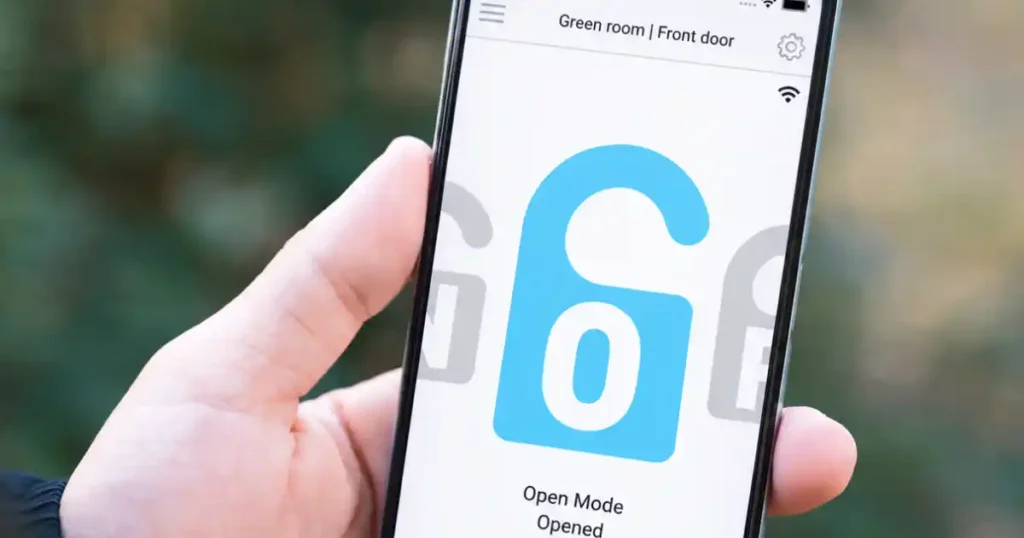
Smart locks typically lock automatically after the door is closed. However, during family gatherings or business meetings, a single locking mechanism may not always be convenient. Open Mode keeps the door unlocked for easy access, while Private Mode temporarily restricts general user access, allowing only designated users to enter.
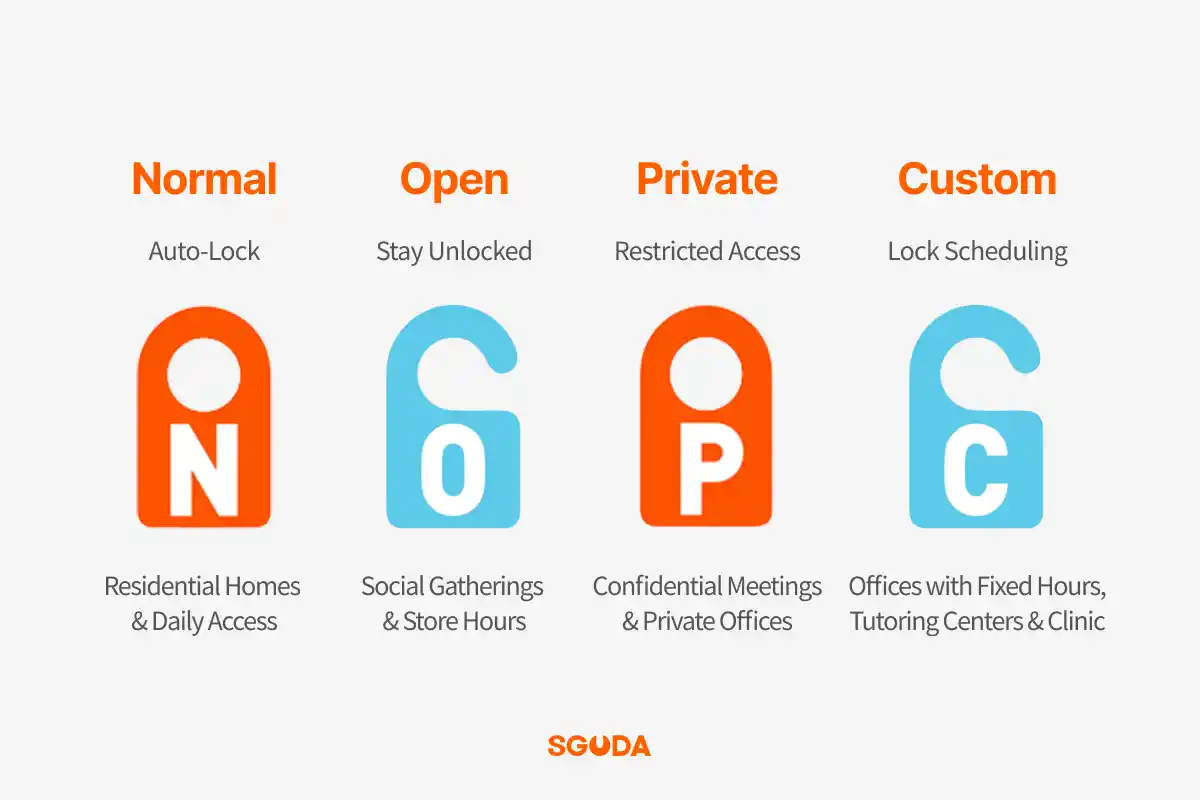
SGUDA smart locks offer four modes: Normal (N), Open (O), Private (P), and Custom (C). Easily switch between modes through the SGUDA App without repeatedly deleting or resetting fingerprints and passcodes.
1. SGUDA’s 4 Smart Lock Modes at a Glance
1. Normal Mode (N) | Auto-Lock for Everyday Security
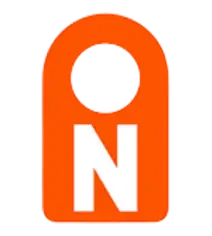
After unlocking the door, the system automatically relocks it after a preset interval.
🏠 Ideal for: Everyday residential use, reducing the risk of forgetting to lock the door.
2. Open Mode (O) | Stay Unlocked for Easy Access
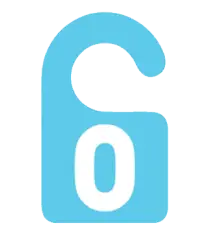
Once activated, the door remains unlocked, allowing people to enter and exit freely without repeated authentication.
🏠 Ideal for: Family gatherings, social events, retail business hours, and offices with frequent foot traffic.
Reminder : Always switch back to Normal Mode when the property is unattended or the event has ended.
3. Private Mode (P) | Restricted Access for Greater Privacy
Private Mode temporarily restricts general users’ access permissions, even if they already have registered passcodes or fingerprints. Only designated users selected in the SGUDA App are permitted to unlock the door.
🏠 Ideal for: Confidential business meetings, private executive offices, and shared spaces with time-based access requirements.
4. Custom Mode (C) | Lock Scheduling That Fits Your Routine
Preset daily locking and unlocking periods (e.g., 8:30 AM–6:00 PM). The lock automatically operates according to your schedule, eliminating the need for daily manual adjustments.
🏠 Ideal for: Businesses with fixed working hours, tutoring centers, clinics, and studios.
Note: Some earlier SGUDA models support only the first three modes. Please check your product specifications before use.
2. What Is the Difference Between Open Mode and Private Mode?
| Feature | Open Mode | Private Mode |
|---|---|---|
| Main Purpose | Allows unrestricted access | Restricts access to designated users |
| Lock Status | Remains unlocked without automatic locking | Remains secured; only designated users can unlock it. |
| Ideal Scenarios | Social gatherings and business hours | Important meetings, private offices, and do-not-disturb periods |
3. How to Switch Lock Modes on SGUDA Smart Locks
- Open the SGUDA App and select your paired smart lock.
- Locate the lock mode options on the lock control screen.
- Swipe left or right to switch between Normal (N), Open (O), Private (P), and Custom (C) modes.
- Follow the on-screen instructions to select designated users or configure time settings, depending on the selected mode.
The actual interface may vary depending on the lock model and app version.
4. Frequently Asked Questions (FAQ)
Does the smart lock automatically relock when Open Mode is activated?
No.
Open Mode temporarily disables the auto-lock function, allowing the door to remain unlocked until you manually switch to another mode.
Can someone with an existing passcode still unlock the door in Private Mode?
Only designated users can unlock the door.
Once Private Mode is activated, general user access is temporarily restricted. Only users selected by the administrator retain unlocking permissions.
What is the difference between Open Mode and Custom Mode?
Open Mode keeps the door unlocked once manually activated, making it ideal for temporary gatherings or events.
Custom Mode automatically controls locking and unlocking according to preset daily schedules, making it suitable for offices and businesses with fixed operating hours.
Why does my SGUDA smart lock only have three modes?
Custom Mode is available on newer models.
Earlier SGUDA smart lock models support only three modes: Normal Mode, Open Mode, and Private Mode.
Whether you are securing your home, welcoming guests, or managing office access, SGUDA smart locks offer four flexible modes designed to fit your lifestyle and access management needs.
Built-in Wi-Fi — No Additional Hub Required
Some smart locks require a separate Wi-Fi Bridge or Hub to enable remote access.
SGUDA U-Lock models feature built-in Wi-Fi, eliminating the need for an additional Wi-Fi Hub.
With the SGUDA system, users can manage their smart lock directly from their phone:
- Check lock status
- Lock or unlock remotely
- Review access history
- Manage the smart lock
This takes a smart lock beyond keyless entry and turns it into a remotely manageable access solution.
Explore SGUDA Smart Locks
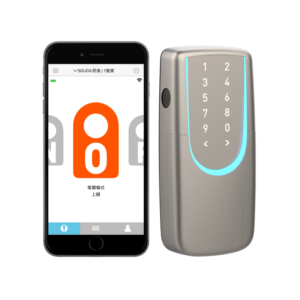
SGUDA App | Fingerprint | Learn More
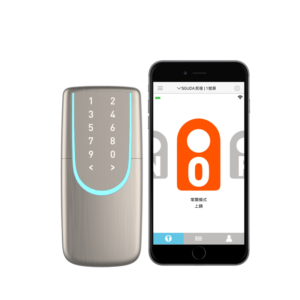
SGUDA App | Passcode | Learn More